During your implementation of Cora PPM it is important to cover how a project starts, what processes and data is managed with inflight projects, and just as important to understand how projects terminate. Here are a few options to consider in Cora PPM to manage how a project terminates:
- Delete the project: Deleting projects is a permanent way of terminating projects. This removes all data and audit data of the project and should be avoided where possible. However, from time to time you may need to delete a project, for example if it was added in error.
- Export the project: Gantt and financials using the various reports and then delete them. Again, this should be avoided however, there are in some situations a use case for this option.
- Archive a Project: The Project disappears off the Programme Structure, however can be included in some reports optionally, and can be unarchived at any time.
- Move a project: to a location on the Programme Structure to signify it is complete, for example "Archive (Completed Projects)".
- Set the project as "Complete" using the Phase and Status options (Admin / System / Project), so that they can be ignored on the Dashboards.
- Add "COMPLETED" to the Project Name to show the audience that it is complete.
- Use a combination (1- 6) of these options depending on what works best for you and your organisation.
Deleting Projects
Deleting projects is a permanent way of terminating projects. You must be a project owner of the project to gain access to project deletion.
Note: The option to delete Projects can be disabled by your Administrator, if required.
Delete a Project from the Programme Structure
To delete a Project from the Programme Structure:
- Right click on the name of the project you want to delete within the programme structure.
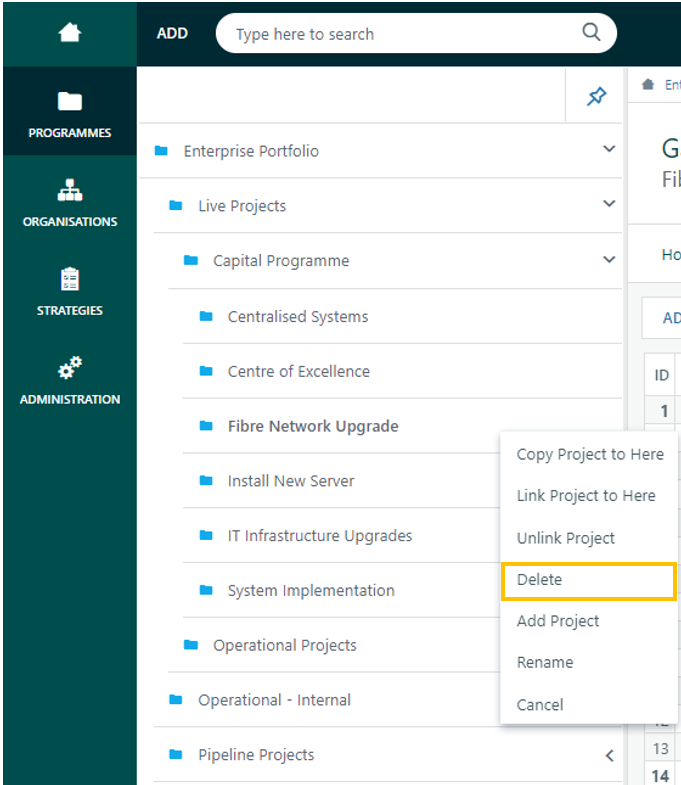
- This opens a list of options.
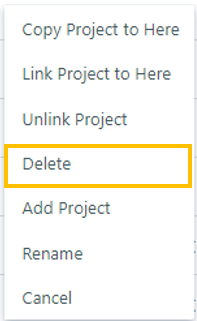
- Click Delete
The following pane will open, where you can select the areas of the project for deletion.
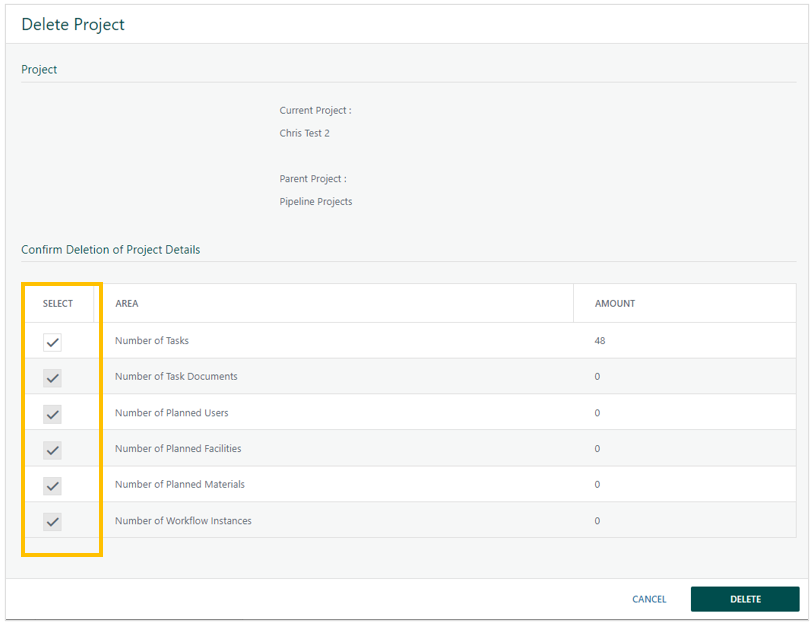
- Click DELETE to continue or CANCEL to abandon the action.
The following “final” confirmation prompt will open
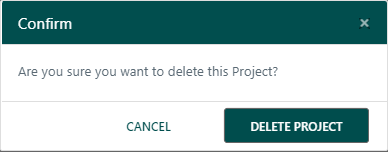
- Click DELETE PROJECT to continue, or CANCEL to abandon the action.
Note: Deleting Projects cannot be undone - so be certain you definitely want to delete the Project.
Note: Deleting projects is a 'hard delete' of the project and all of its data from the database.
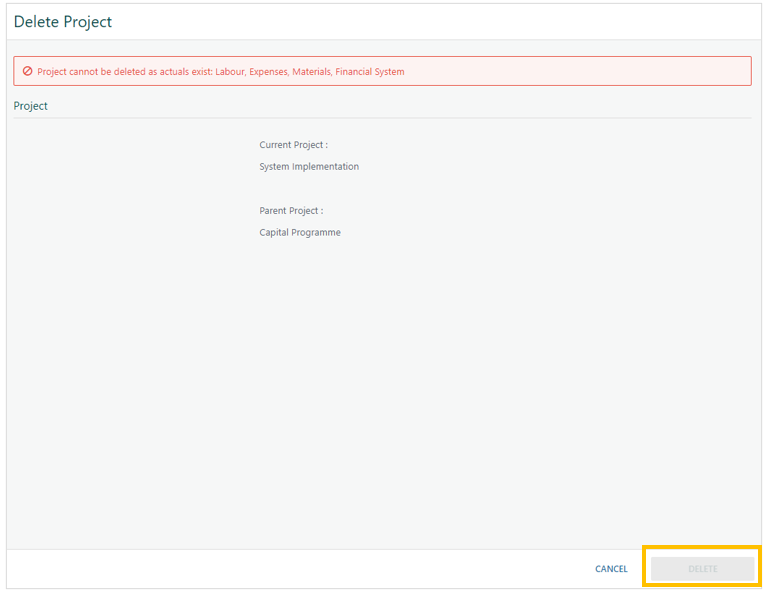
You cannot delete projects that have timesheet hours, expenses or financial data recorded against it. The following pane will open and the option to DELETE will be greyed out and unavailable to carry out the action.
Delete a Project from Properties
Projects can be deleted by going to Project Properties for the project and at the bottom of the Settings tab click the Delete Project button.
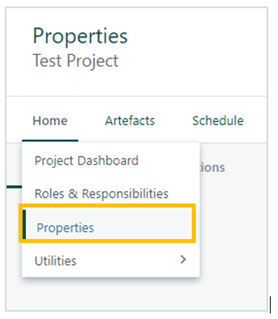
- Click Properties
The following pane will be displayed.
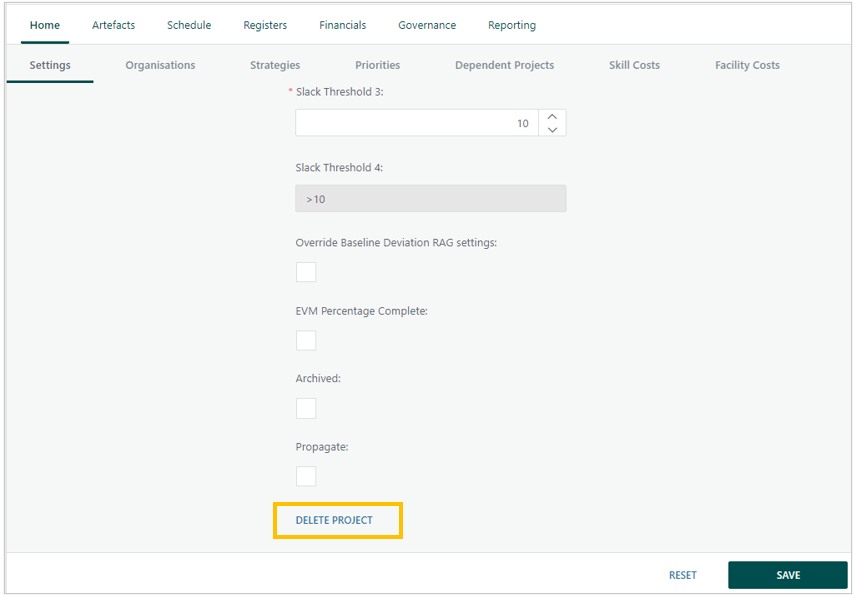
- Click Delete Project
The following pane will open, where you can select the areas of the project for deletion.
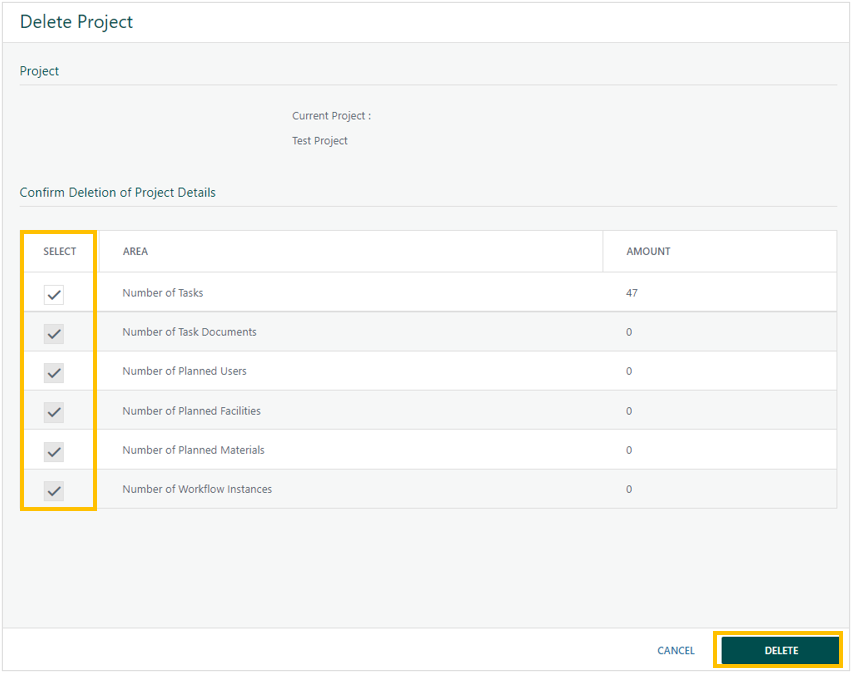
- Click DELETE to continue or CANCEL to abandon the action.
The following “final” confirmation prompt will open
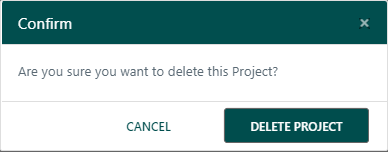
- Click DELETE PROJECT to continue, or CANCEL to abandon the action.
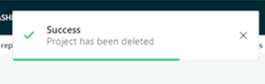
Note: Deleting Projects cannot be undone - so be certain you definitely want to delete the Project.
Delete a Project from the Gantt
Projects can also be deleted from within the Gantt Chart by right clicking the project and selecting delete task(s).
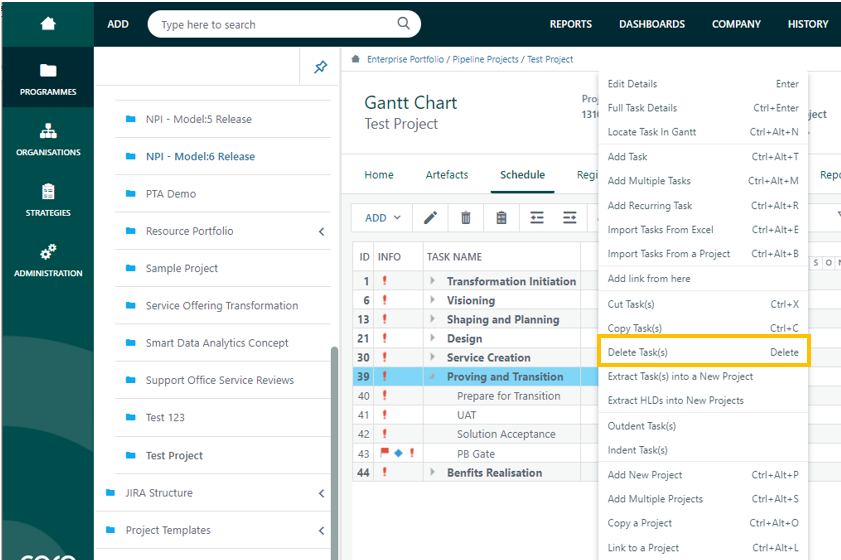
- Click Delete Task(s)
The following confirmation pane will open
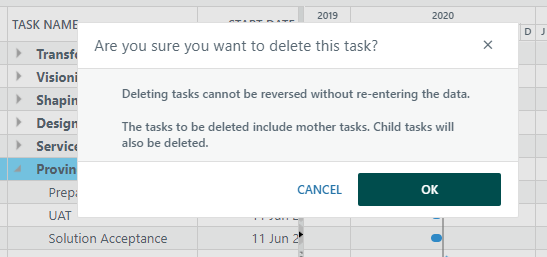
- Click OK to continue or CANCEL to abandon the action.
Note: Deleting Projects cannot be undone - so be certain you definitely want to delete the Project.
Enabling Project Owners to Delete Projects
To allow users with the Project Owner role to delete projects:
- Navigate to Administration > Project.
- Select the Configuration tab.
- Under General Settings, locate the option Allow Project Owners to Delete Projects.
- Check the box to enable this feature.
- Click Save.
Note: This setting grants project owners the ability to permanently delete projects. Use with caution, as deleted projects cannot be recovered.
Archiving Projects
Archiving a Project removes it from programme structure, although you can still run archive reports to unarchive them. In some cases, a report will allow you to include data from archive projects.
Note: Your administrator may or may not include Archive Project Gantt charts in your portfolio / programme view of Gantt charts with this setting:

Archive a Project from Properties
Projects can be archived by going to Project Properties for the project.
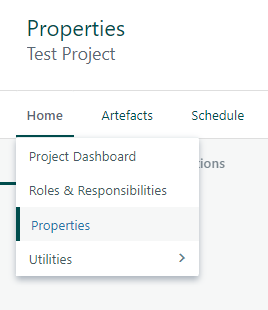
- Click Properties
The following pane will be open.
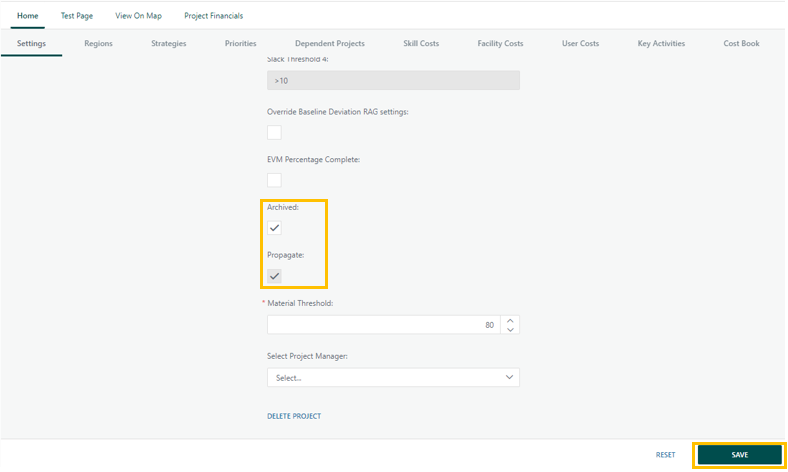
- Check the “Archived” box
The “Propagate” box will automatically check.
- Click SAVE to continue or RESET to cancel the action.
Note: The project can be unarchived at any time, if necessary, by unchecking the “Archived” box.
Create a Location in the Programme Structure
Create a location on the Programme Structure, for example "Archive (Completed Projects)". Move a project to this location to signify it is complete.
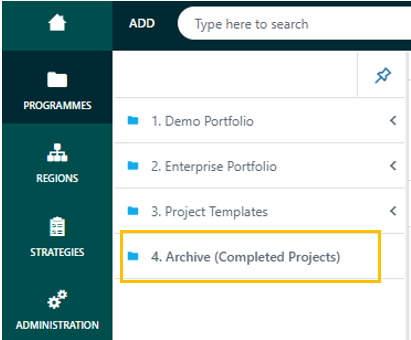
Important Consideration:
When moving a project from one location to the next, you will be prompted with a few options, e.g. 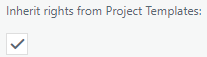 .
.
If you pick this option, the project access will change on the project being moved, inheriting the destination location access. This could mean that some users will now have access to the project and some not have access, and some may have different access than before.
Change the Status
Set the project as "Complete" in the Project Properties.
Note: An administrator can set the project as complete using the Phase and Status options (Admin / System / Project / Status), so that they can be ignored on the Dashboards.
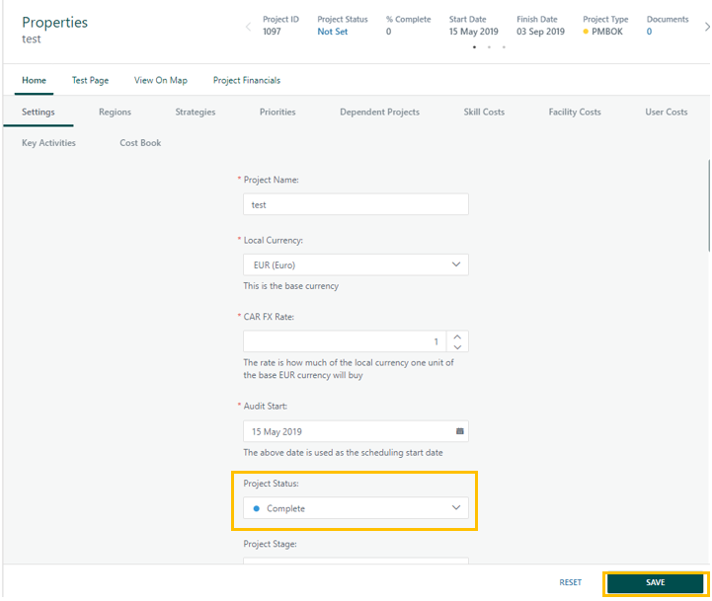
- Click SAVE
The status will change to “Complete”.
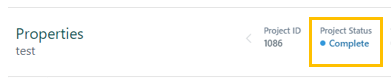
Note: Your administrator may also add this status to the Project Types, meaning that once a project has been completed, you will have to update both the Project Status AND the Project Type. This is done necause in some cases administrators will want this project to fall off dashboards and reports that exclude finished projects.
Was this article helpful?
That’s Great!
Thank you for your feedback
Sorry! We couldn't be helpful
Thank you for your feedback
Feedback sent
We appreciate your effort and will try to fix the article